Web GUI
Ephemerista Web is the graphical interface of Ephemerista. It runs in the browser: you build a scenario on the left, watch it on a 3D globe and run the analyses in a panel below the globe, without writing any code. Everything the interface does goes through the same Python library that is described in the Python API part of this manual, and the scenarios it saves are plain JSON files that the library can read.
The source code of the interface is available at the LSF GitLab.
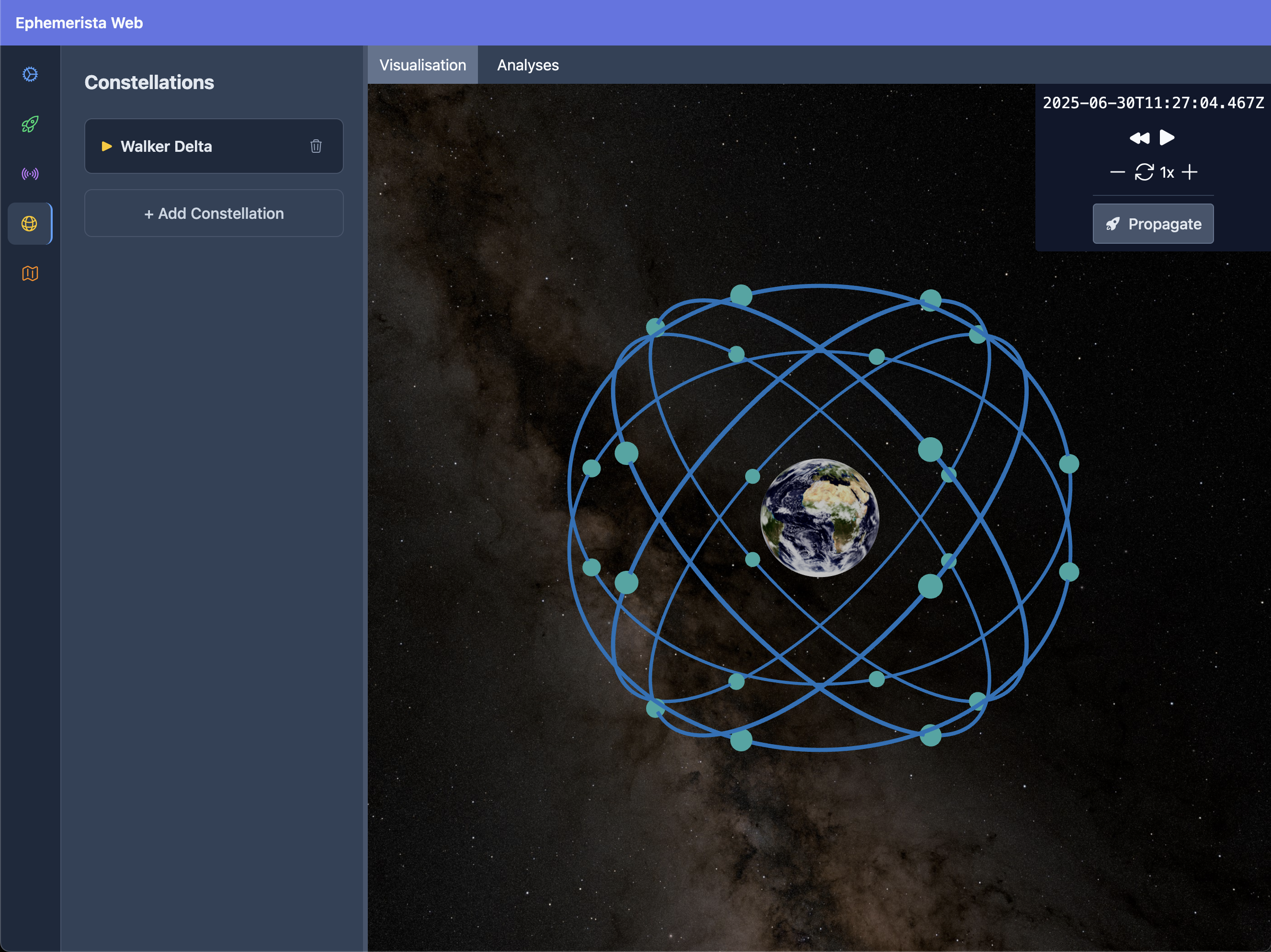
The menu bar at the top, the scenario editor on the left, the globe and the analyses panel on the right
Getting started
There are two ways to use Ephemerista Web: the service that the Libre Space Foundation hosts, or a copy that you run yourself.
The hosted service
The Libre Space Foundation runs Ephemerista Web at https://ephemerista.libre.space for its community.
Open https://ephemerista.libre.space. The page that opens describes the service.
Press Sign in with LSF and sign in with your Libre Space Foundation account, the same one you use for SatNOGS, the forum and the other LSF services.
The interface opens. Your scenarios are kept with your account, so you find them again from any browser.
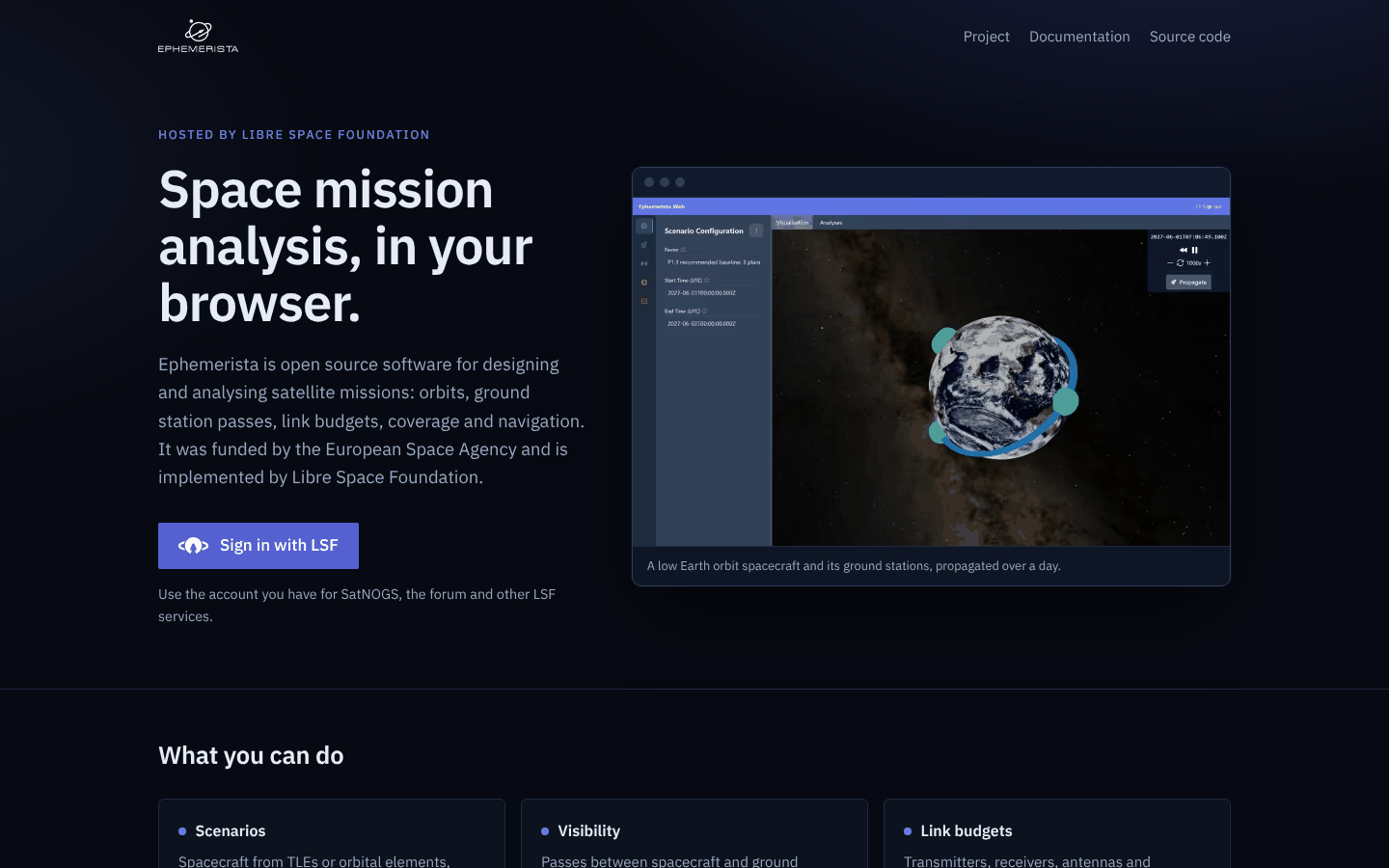
The hosted service at ephemerista.libre.space
Only people with an LSF account can sign in. Without one, run the interface yourself as described below: it is free software and has every analysis of the hosted service.
Running it yourself
The interface is published as a Docker image. It needs the same data files as the library:
Download the data files into a directory, for example
data/:Earth orientation parameters: finals2000A.all.csv
Planetary ephemerides: de440s.bsp
Run the container:
docker run -p 8000:8000 -v ./data:/app/backend/data registry.gitlab.com/librespacefoundation/ephemerista/ephemerista-web:latest
Open http://localhost:8000 in your browser.
A copy that you run yourself has no accounts unless you configure them, so anyone who can reach it can use it, and nothing is stored on the server: the scenario lives in your browser, and you keep it by exporting it to a file. The README of ephemerista-web describes how to build the image, run it from source, sign in through an OpenID Connect provider, offer a library of scenarios and serve many users at once.
Your first five minutes
Open Scenario → Open…. The library lists ready-made scenarios.
Click a card, for example Webinar 2: ISS passes above 10° from Athens. The scenario replaces the current one and its first 3 hours appear on the globe.
Press Propagate, at the top right of the globe, to compute the whole time span.
In the analyses panel below the globe, choose Visibility and press Run analysis.
The summary at the top of the results gives the number of passes, the contact time and the highest elevation. Click a pass in the table to plot it.
The interface
The window has four parts:
The menu bar at the top, with the Scenario, Analysis, View and Help menus, the name of the open scenario, and your name with Sign out on the right.
The scenario editor on the left. The named sections on its far left, Scenario, Assets, Channels, Constellations and Areas, switch between the parts of the scenario and show how many items each has.
The globe, an interactive 3D view of the scenario with its time controls.
The analyses panel below the globe, with the analyses on its left and their results on its right.
Every part can be resized:
Drag the bar between the editor and the globe to make the editor wider or narrower.
Drag the bar above the analyses panel to give the results or the globe more room.
Press Collapse at the bottom of the editor to leave only its named sections, and give the globe and the results the whole width. Click any section, or the arrows at the bottom, to open it again.
Press the arrow at the right of the Analyses title to fold the panel away, and again to bring it back.
View → Scenario Editor and View → Analyses Panel show and hide the same parts from the menu.
The menus
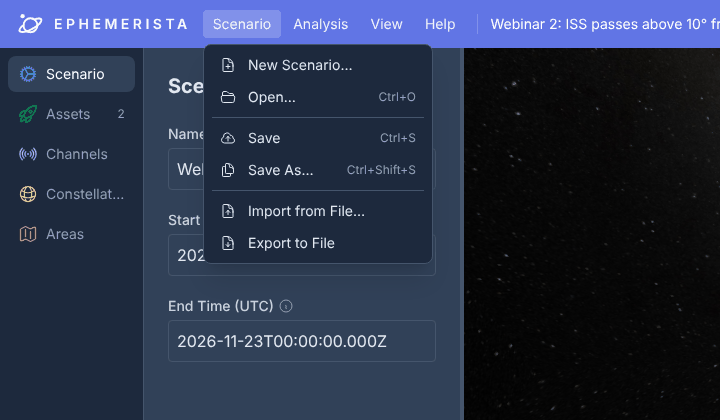
The Scenario menu
Menu |
Item |
What it does |
|---|---|---|
Scenario |
New Scenario… |
Starts again from an empty scenario, after asking you to confirm |
Open… (Ctrl+O) |
Opens a scenario from the library, from your saved scenarios or from a file |
|
Save (Ctrl+S) |
Saves a new version of the saved scenario you are working on |
|
Save As… (Ctrl+Shift+S) |
Saves the scenario under a new title in your saved scenarios |
|
Share… |
Chooses who can open a saved scenario of yours, and gives its link |
|
Import from File… |
Opens a scenario from a JSON file |
|
Export to File |
Downloads the scenario as a JSON file |
|
Analysis |
Visibility, Link Budget, Navigation, Coverage |
Jumps to that analysis and opens the analyses panel if it is folded away |
View |
Scenario Editor, Analyses Panel |
Shows or hides these parts of the window |
Presentation Mode |
Makes everything larger, for a projector or a shared screen |
|
Earth |
Chooses how the Earth is drawn: Natural, Night Map, Atlas or Blueprint |
|
Help |
Documentation |
Opens this guide |
Ephemerista Project |
Opens the project site, ephemerista.space |
|
Source Code |
Opens the source code of the interface |
Save, Save As… and Share… need an account, so they appear only when you are signed in. Share… appears only for a scenario you saved yourself.
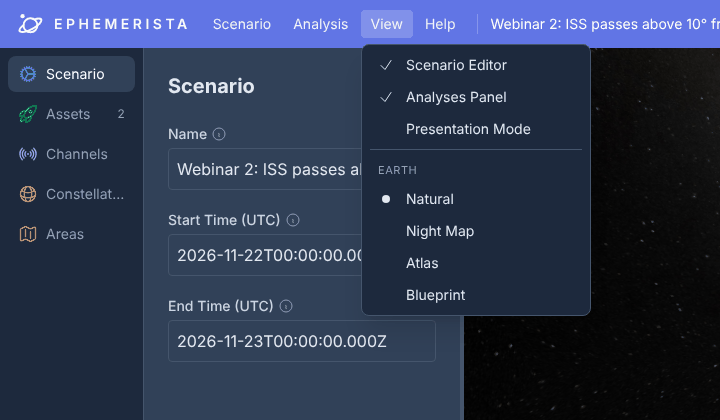
The View menu
Opening, saving and sharing scenarios
Opening a scenario
Scenario → Open… (Ctrl+O) gathers every place a scenario can come from. The scenario you open replaces the current one, so save or export the current one first if you want to keep it.
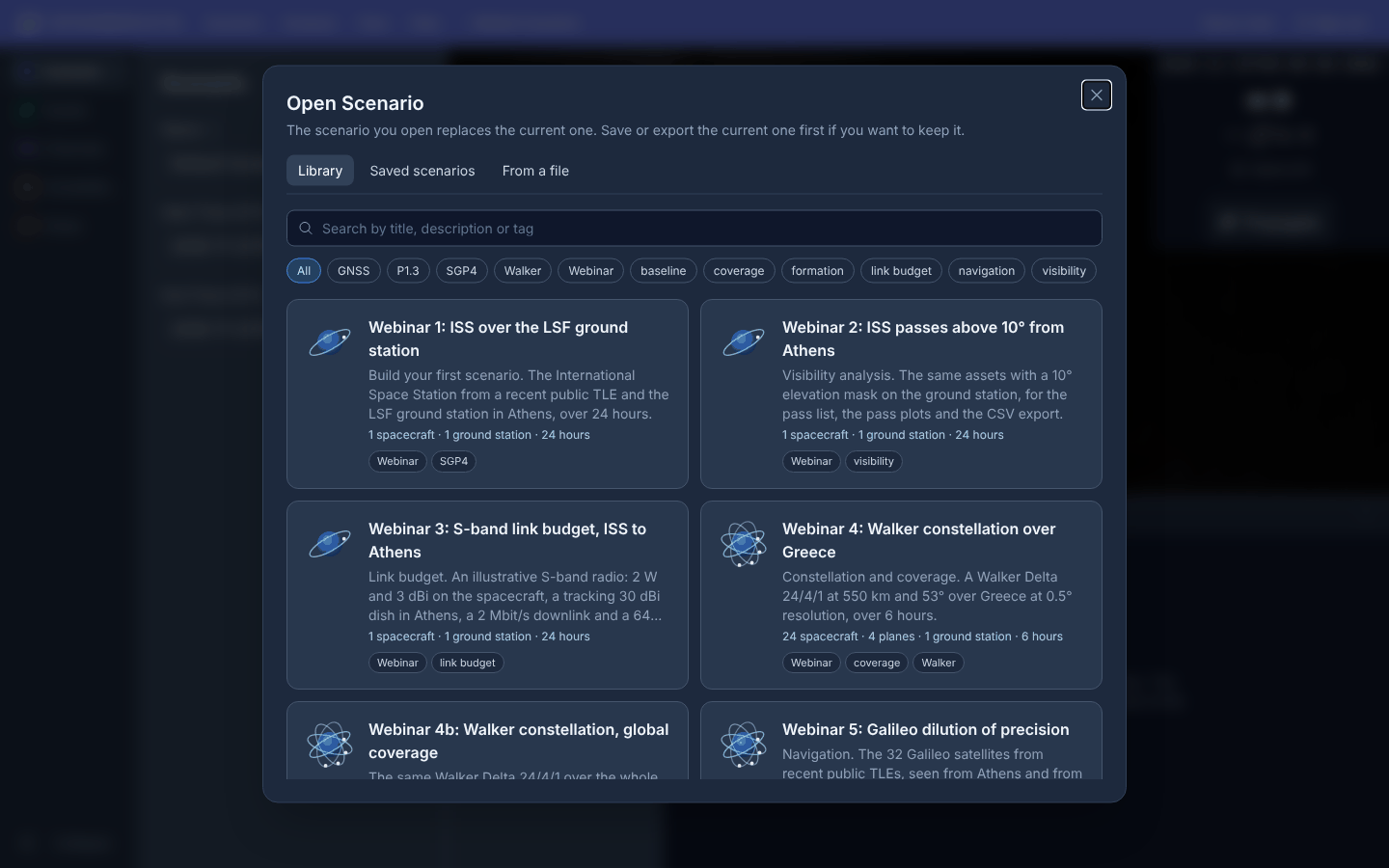
Opening a scenario from the library
Library lists the scenarios that come with the service: the webinar scenarios that show each analysis step by step, and studies such as constellation trade-offs. Each card shows what the scenario contains, for example 24 spacecraft · 4 planes · 1 ground station · 6 hours. Type in the search box to search titles, descriptions and tags, or click a tag to show only the scenarios that have it. Click a card to open it.
Saved scenarios lists, under My scenarios, the scenarios you have saved, and under Shared with everyone, those that other people have shared. Search by title, description or owner. Delete removes one of your own scenarios, after you confirm it.
From a file opens a scenario that was exported from Ephemerista as a JSON file.
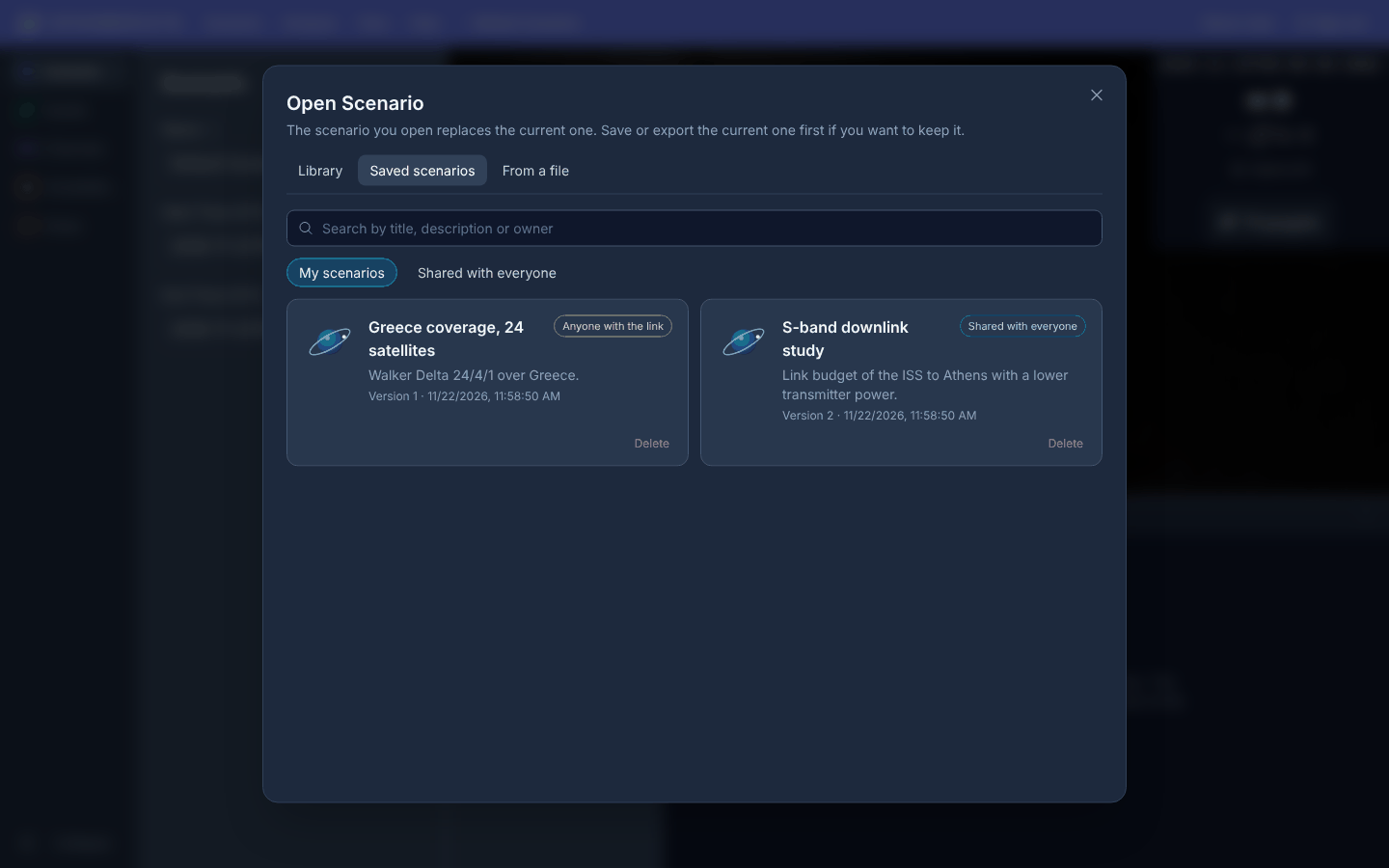
Your saved scenarios, with who can open each of them
A scenario from the library or from someone else opens as a copy: you can change it freely, and Save asks for a title and keeps your changes in your own saved scenarios, without touching the original.
Saving
When you are signed in, the scenario is kept on the server with its versions.
Save As… (Ctrl+Shift+S) asks for a title and an optional description, and saves the scenario in your saved scenarios. Only you can see it until you share it.
Save (Ctrl+S) saves a new version of the saved scenario you are working on. The first time, it asks for a title, like Save As….
Under the name of the scenario, the menu bar says which saved scenario you are working on: Saved as “…” for one of yours, Opened from “…” for one that someone else shared.
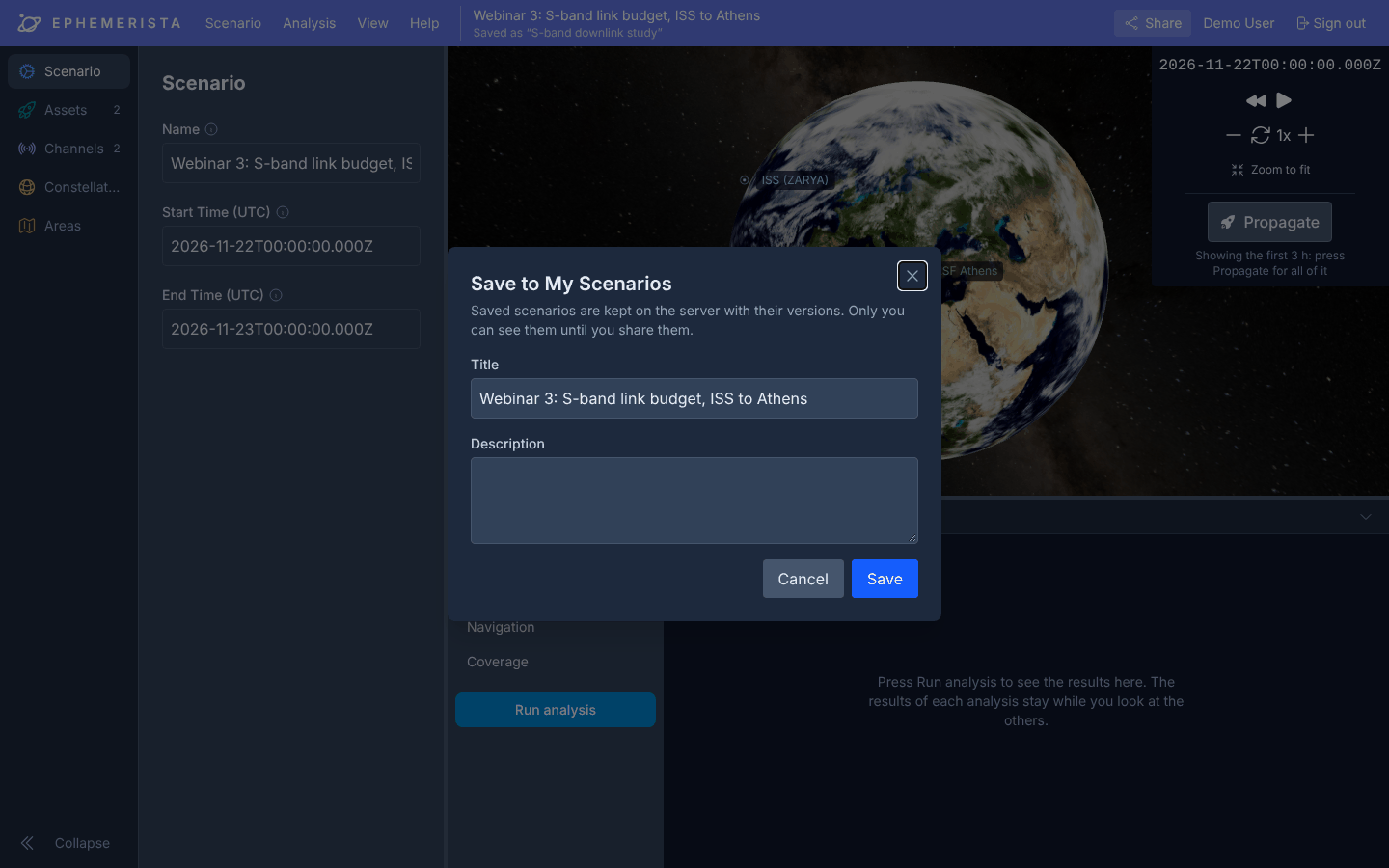
Saving a scenario to your saved scenarios
The editor also keeps the scenario in your browser as you work: if you close the tab or reload the page, it comes back as you left it. This copy is only in that browser, so save or export what you want to keep.
Sharing
Share in the menu bar, or Scenario → Share…, chooses who can open one of your saved scenarios:
Private: only you can open it.
Anyone with the link: anyone signed in who has the link can open it and copy it. It is not listed. New link replaces the link, so that the old one stops working.
Shared with everyone: it is listed under Shared with everyone for everyone signed in, who can open it and copy it.
Copy link copies the link to send. The people you share with need to sign in to open it, and they cannot change your scenario: they work on their own copy.
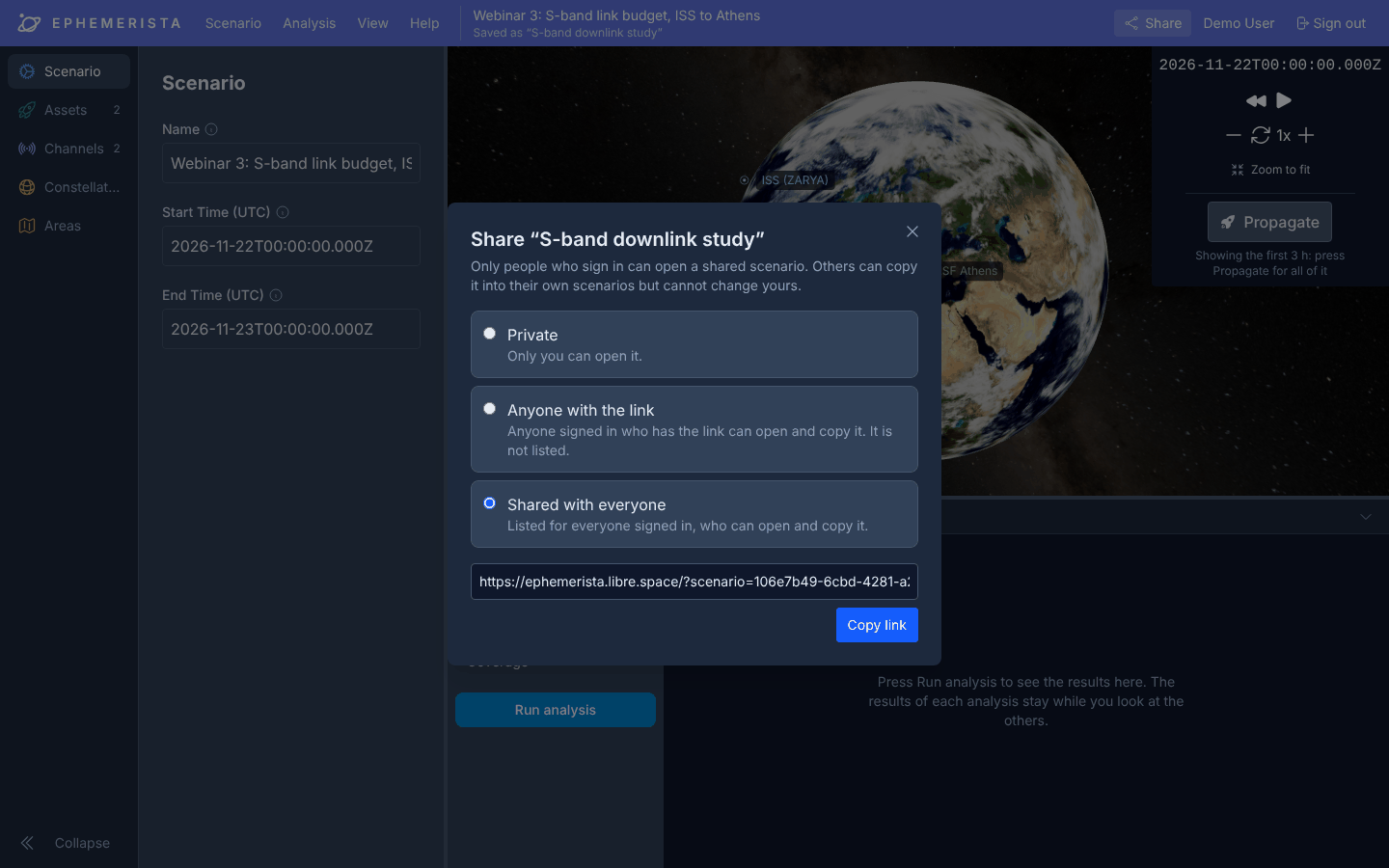
Sharing a saved scenario
Files
Scenario → Export to File downloads the scenario as a JSON file, and Scenario → Import from File… opens one. The files:
contain every asset, channel, constellation and area of the scenario,
are validated against the schema of the library when they are opened,
can be read and edited in a text editor,
can be loaded by the Python library with
Scenario.model_validate_json, so a scenario built in the browser can be scripted, swept and put into a pipeline.
The example scenarios of the library open the same way, for example PHASMA, a LEO satellite with a link budget, or Navigation, a GNSS constellation.
Building a scenario
The scenario editor changes the scenario as you type, and the globe follows. Each field has a ⓘ next to its name: hover it for an explanation and typical values. Fields that are not valid are marked in red, with the reason below them.
Scenario
The Scenario section holds the name of the scenario and its time span, the Start Time and End Time in UTC. Every propagation and analysis covers this span.
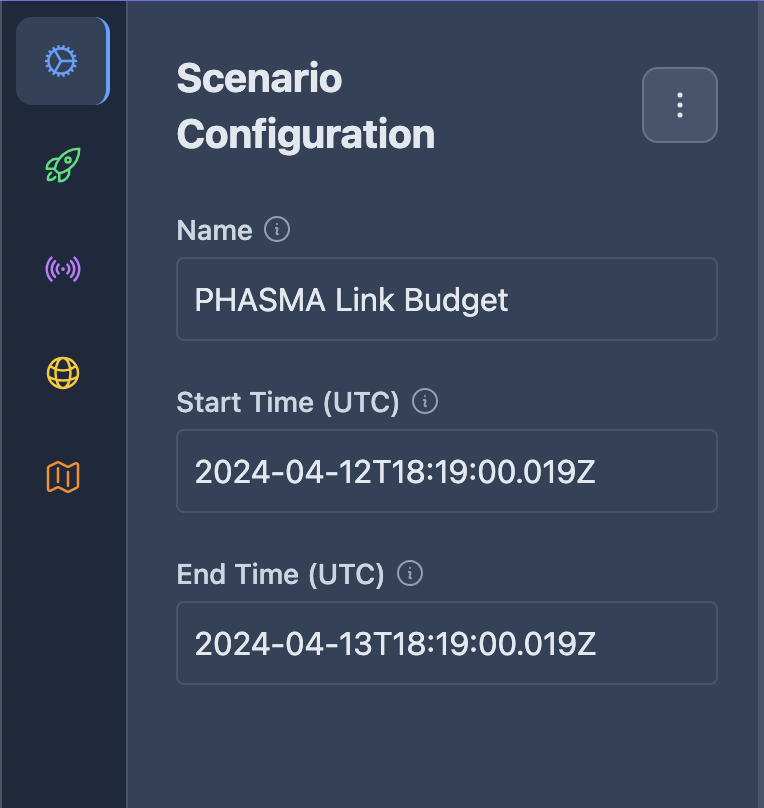
The name and time span of the scenario
Assets
Assets are the spacecraft and ground stations of the scenario. + Add Asset adds one; click the name of an asset to fold or unfold it, and the bin icon removes it. Model Type makes an asset a Spacecraft or a Ground Station.
Spacecraft
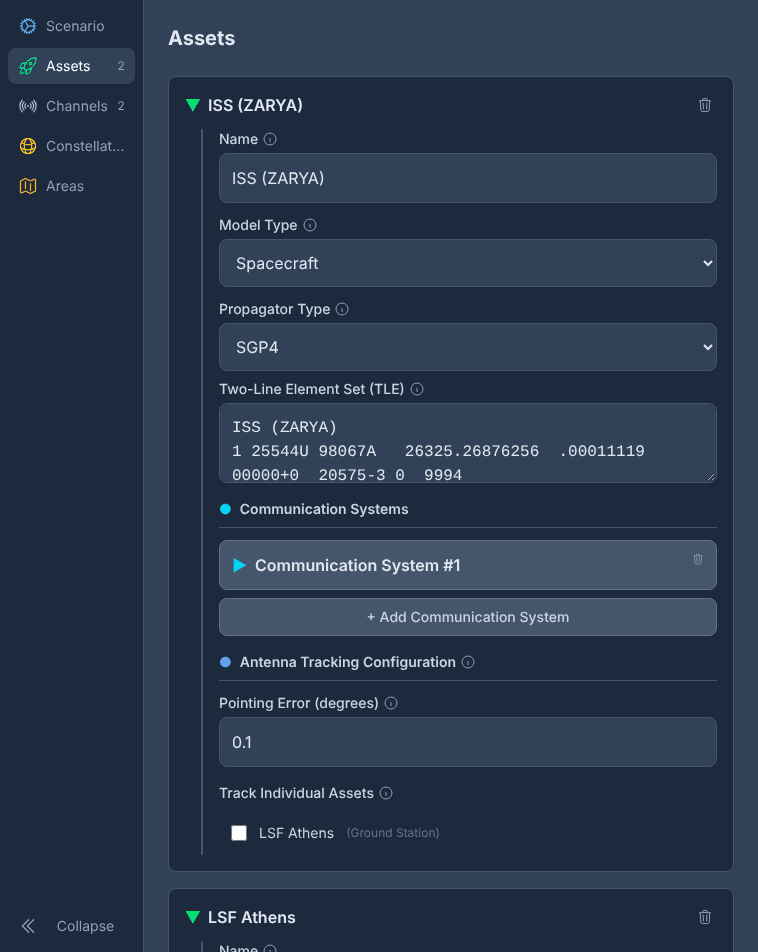
A spacecraft propagated with SGP4 from a TLE
Propagator Type chooses how the orbit of the spacecraft is computed:
SGP4: from a two-line element set. Paste the TLE, with or without its name line, into Two-Line Element Set (TLE). This is the propagator for real satellites, with element sets such as those of CelesTrak.
Semi-Analytical: the Orekit DSST (Draper Semi-analytical Satellite Theory) propagator, fast and accurate over long spans.
Numerical: the Orekit numerical propagator, the most precise and the slowest.
OEM: a pre-computed trajectory from a CCSDS Orbit Ephemeris Message file. Load OEM reads the file.
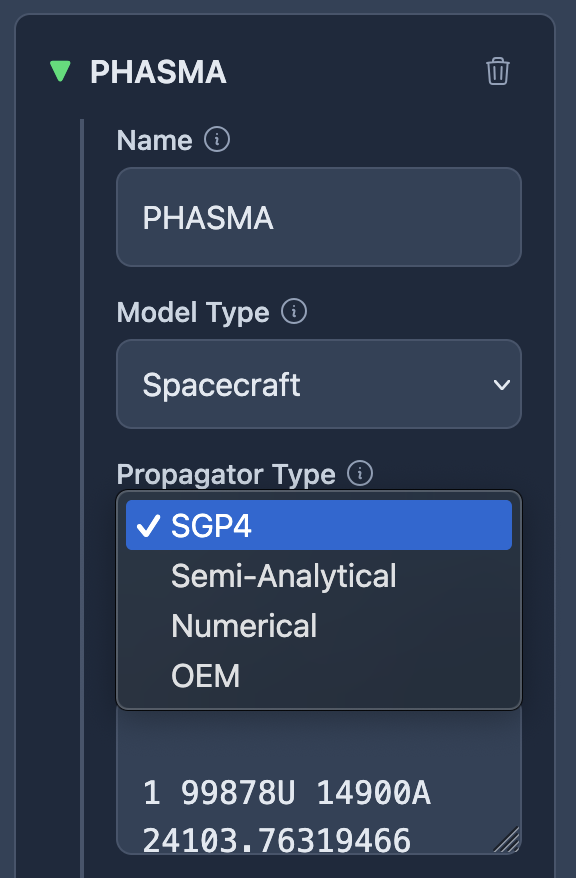
The initial state of a spacecraft with a semi-analytical propagator
The semi-analytical and numerical propagators start from an Initial State, whose State Type is one of:
Cartesian: the epoch, the position (X, Y, Z in km) and the velocity (VX, VY, VZ in km/s), in a chosen reference frame.
Keplerian: the semi-major axis and eccentricity, or the radii or altitudes of the apsides, the inclination, the longitude of the ascending node, the argument of periapsis, and the true or mean anomaly.
Low Earth Orbit, Medium Earth Orbit, Geostationary Orbit and Sun-Synchronous Orbit: orbits described the way mission designers think of them, by altitude and inclination, by the longitude of a geostationary slot, or by the altitude and the local time of the ascending node, from which the inclination of a sun-synchronous orbit is computed.
Their Properties set the force model: the degree and order of the gravity field, the third bodies, solar radiation pressure and atmospheric drag, and the step sizes and tolerance of the integrator.
Ground stations
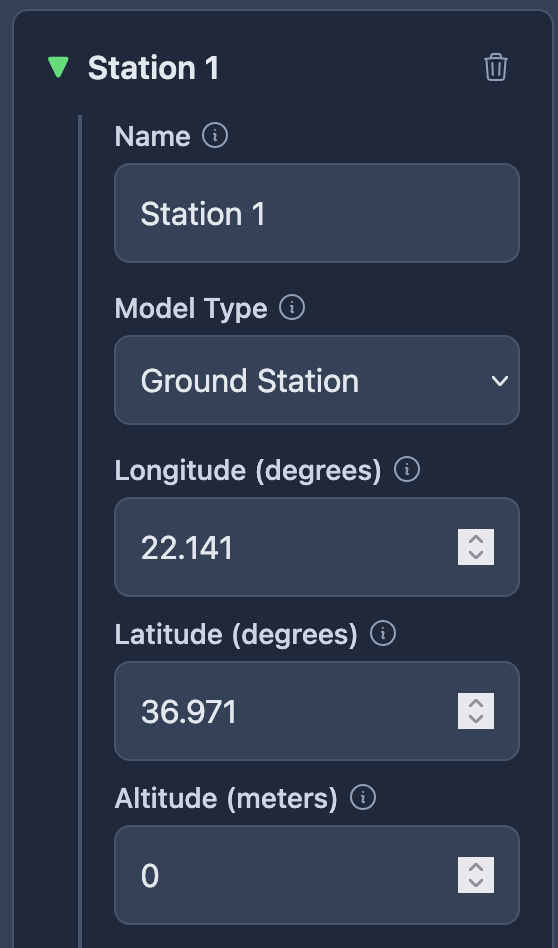
A ground station
A ground station has a Longitude and Latitude in degrees, an Altitude in metres, and a Minimum Elevation in degrees: the visibility, link budget and navigation analyses only count a spacecraft above this elevation. Values between 5° and 15° are typical, depending on the horizon of the station.
Communication systems
Communication systems are needed for link budgets. + Add Communication System adds one to an asset; each has:
an Antenna: Simple, with a Gain and a Half-Power Beamwidth, or Complex, with a Parabolic, Gaussian or Dipole pattern, or an MSI/Custom pattern loaded from a file,
the Channels it uses, chosen from those of the scenario,
an optional Receiver: Simple, with a Frequency and a System Noise Temperature, or Complex, with the antenna noise temperature, and the gain and noise figure of the low-noise amplifier,
an optional Transmitter, with a Frequency, a Power in watts, a Line Loss and an Output Back-Off.
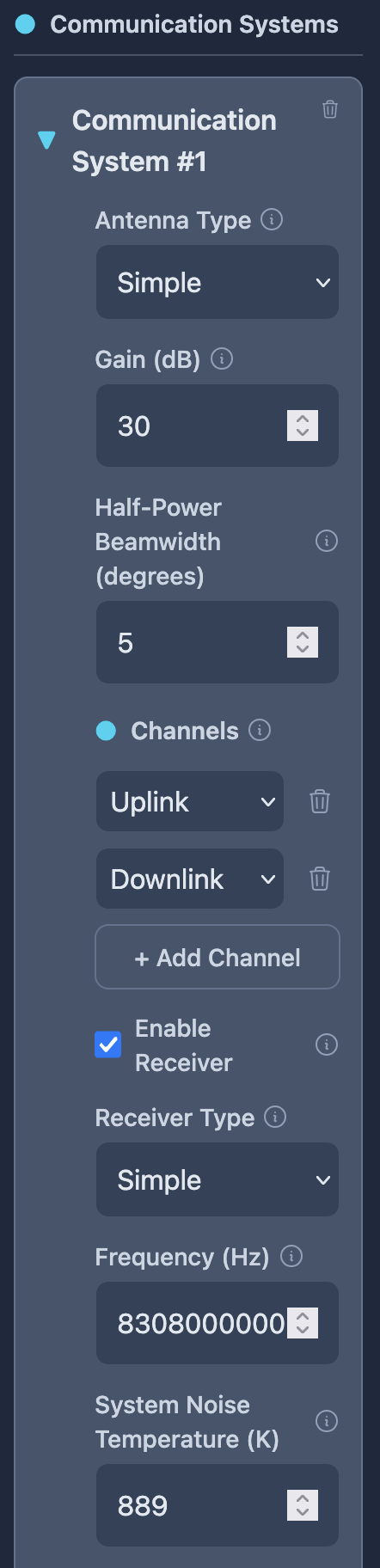
A communication system of a spacecraft
Antenna tracking
The Antenna Tracking Configuration at the bottom of each asset points its antennas at other assets: tick the assets under Track Individual Assets, or the constellations under Track Constellations to track any of their spacecraft. Pointing Error is the accuracy of the tracking in degrees, for example 0.1° for a precise ground station and 0.5° to 1° for a simpler system.
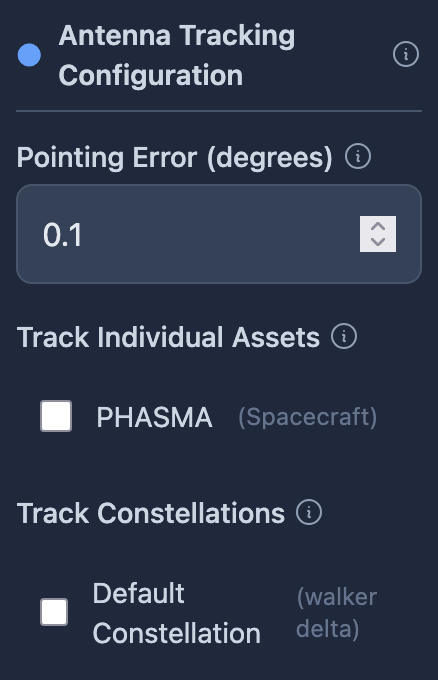
Antenna tracking
Several targets at once
When several tracked assets are in view at the same time, Ephemerista assumes that all of them are tracked perfectly, although a single antenna can only point at one target at a time. A later version will choose one target, for example by link margin or priority, and model the time to repoint.
Channels
Channels describe the links that communication systems use. + Add Channel adds one, with:
a Link Type, Uplink or Downlink,
a Data Rate in bits per second,
the Required Eb/N0 and the Margin it must keep, in dB,
a Modulation, from BPSK to 256QAM, with its Roll-Off Factor and Forward Error Correction code rate.
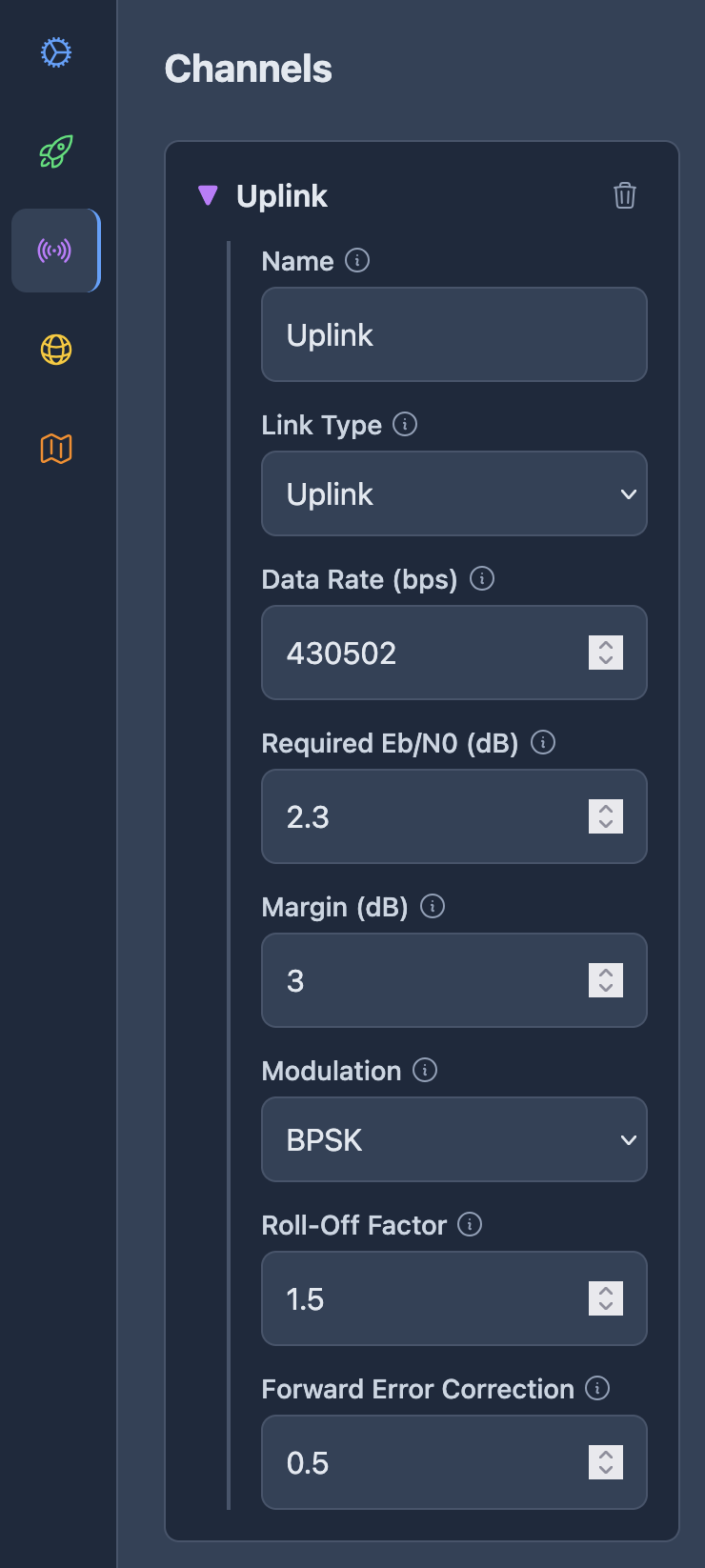
A downlink channel
Constellations
Constellations add many spacecraft at once. Constellation Type is one of:
Walker Delta: the classic pattern of inclined planes, set by the number of satellites, the number of planes, the phasing, the semi-major axis, the eccentricity, the inclination and the argument of periapsis.
Walker Star: polar planes spread over 180° instead of 360°, for global coverage.
Street of Coverage: planes arranged so that their swaths overlap, for continuous coverage of latitude bands, with the overlap set by the coverage fold.
Flower: repeating ground tracks, set by the number of petals and the days of the repeat cycle.
Each constellation has its own Propagator Type, Semi-Analytical or Numerical, and can carry communication systems, which every one of its spacecraft gets. The globe and the analyses show the spacecraft of a constellation like any other asset.
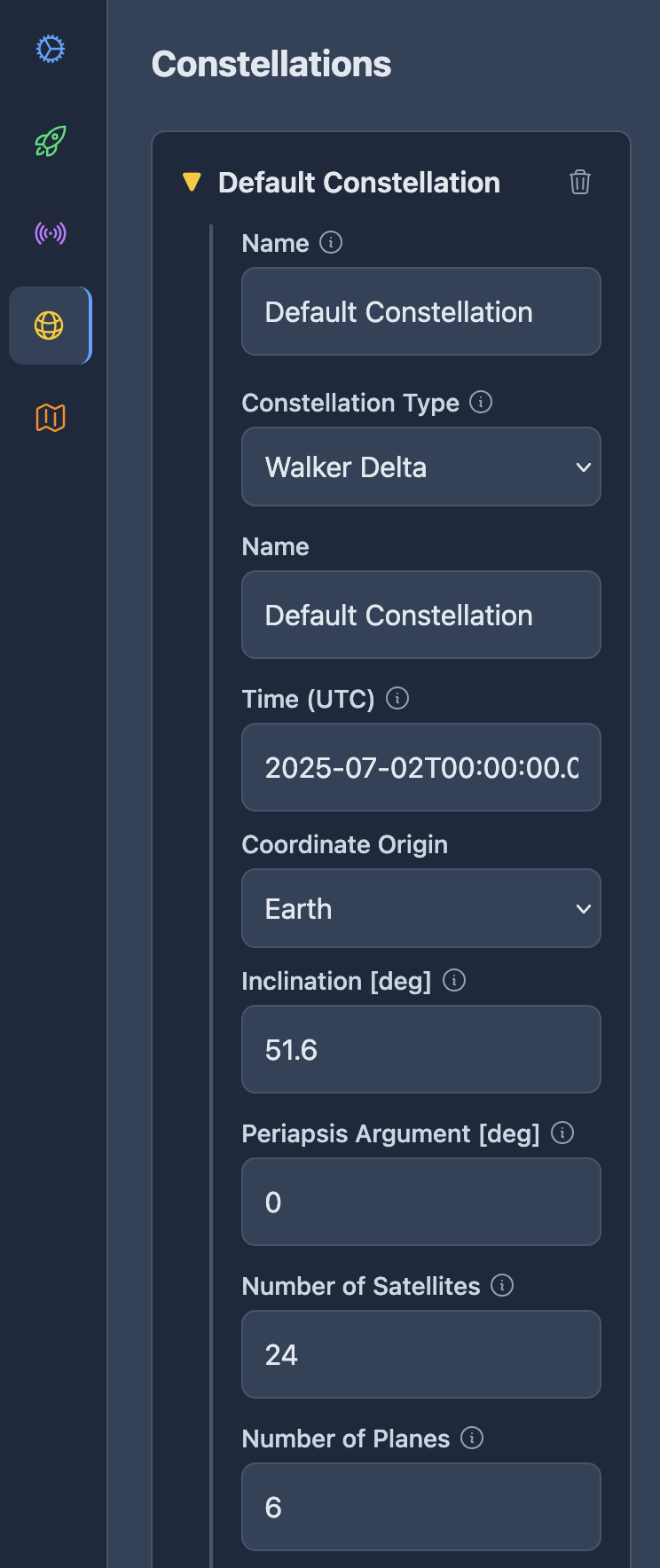
A Walker Delta constellation
Areas of interest
Areas of interest are the regions that the coverage analysis studies.
Press + Add Area of Interest. A map opens.
Press Draw Rectangle, then click and drag on the map to draw the area.
Give it a name in Area Name, and a Min Elevation in degrees.
Press Save Area.
Edit opens an area again, and the bin removes it. Discretization Resolution, above the areas, is the size in degrees of the cells that the areas are cut into for the coverage analysis: 1° to 2° is quick, for a first look; 0.5° to 1° is a balance; below 0.5° is precise and slow.
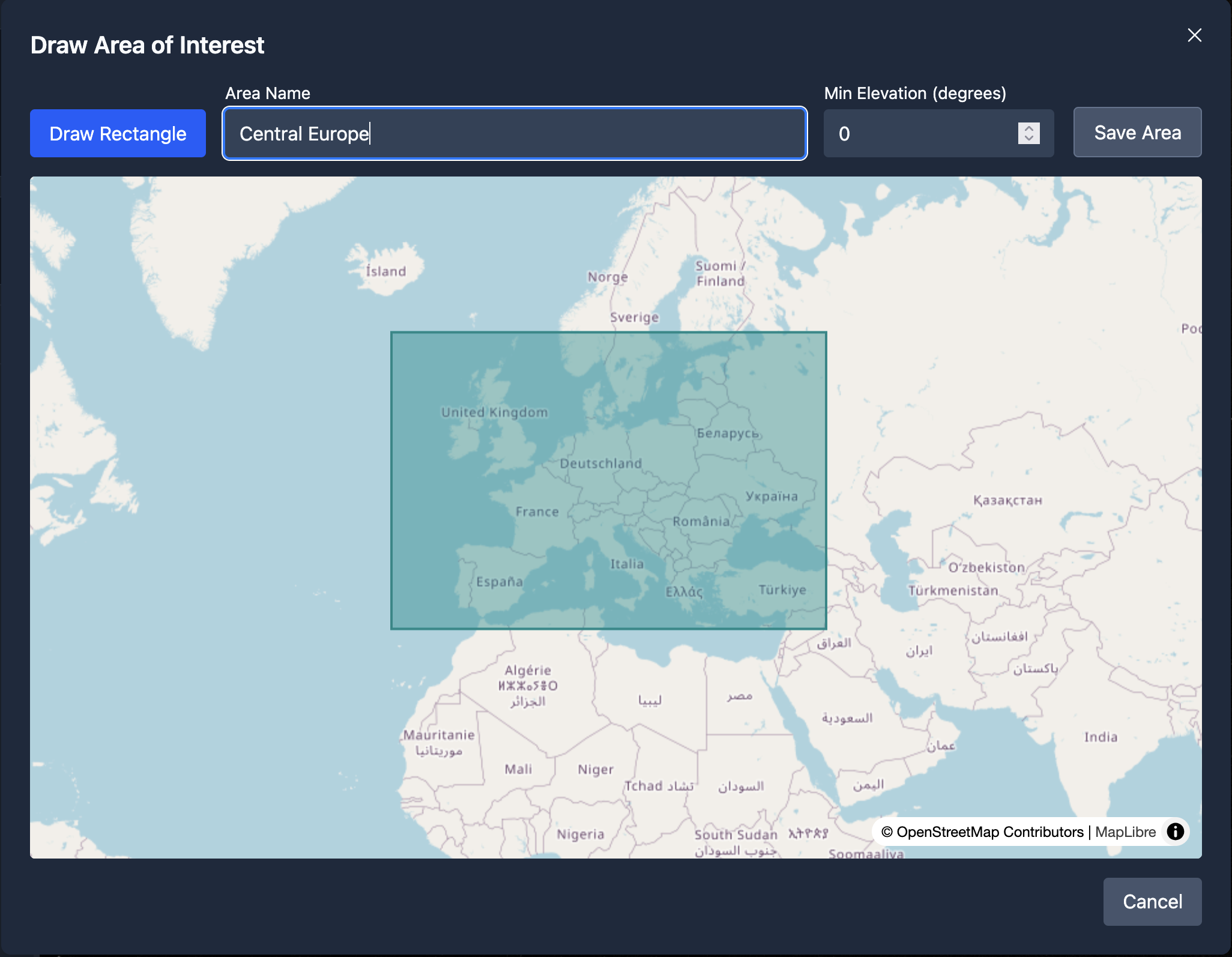
Drawing an area of interest
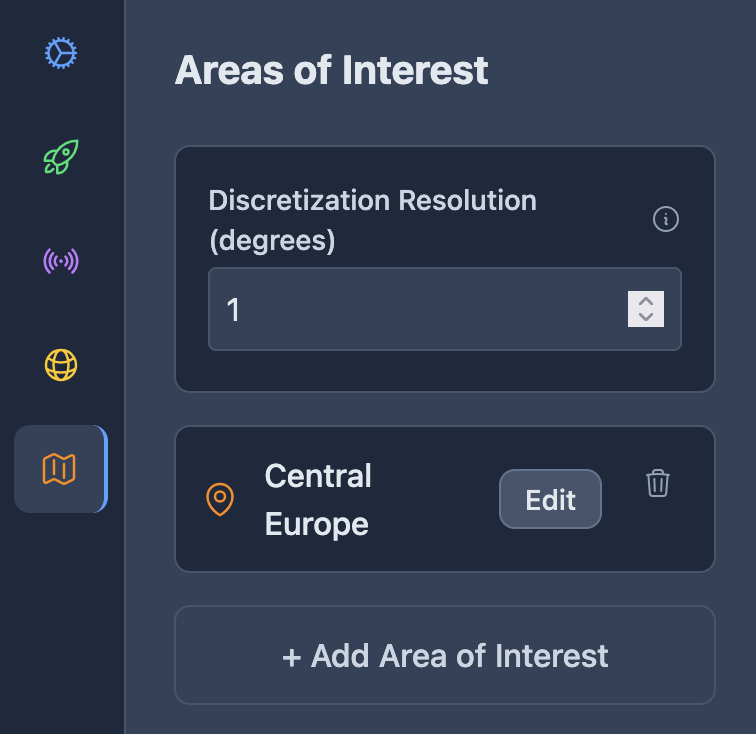
The areas of interest of a scenario
The globe
The globe shows the scenario as it moves through time: spacecraft with their names and their trajectories, and ground stations on the surface.
Drag to turn the view, scroll to zoom.
Zoom to fit, under the time controls, frames the whole scenario, centred on its first ground station.
The time at the top right is the time of the globe, in UTC. The arrows play, pause and rewind it, and − and + slow it down and speed it up.
When a scenario opens or changes, its first 3 hours are propagated and appear on the globe at once. Propagate computes the whole time span; the note under it says when only the first hours are shown. The analyses do not need it, except the ground tracks of the coverage analysis.
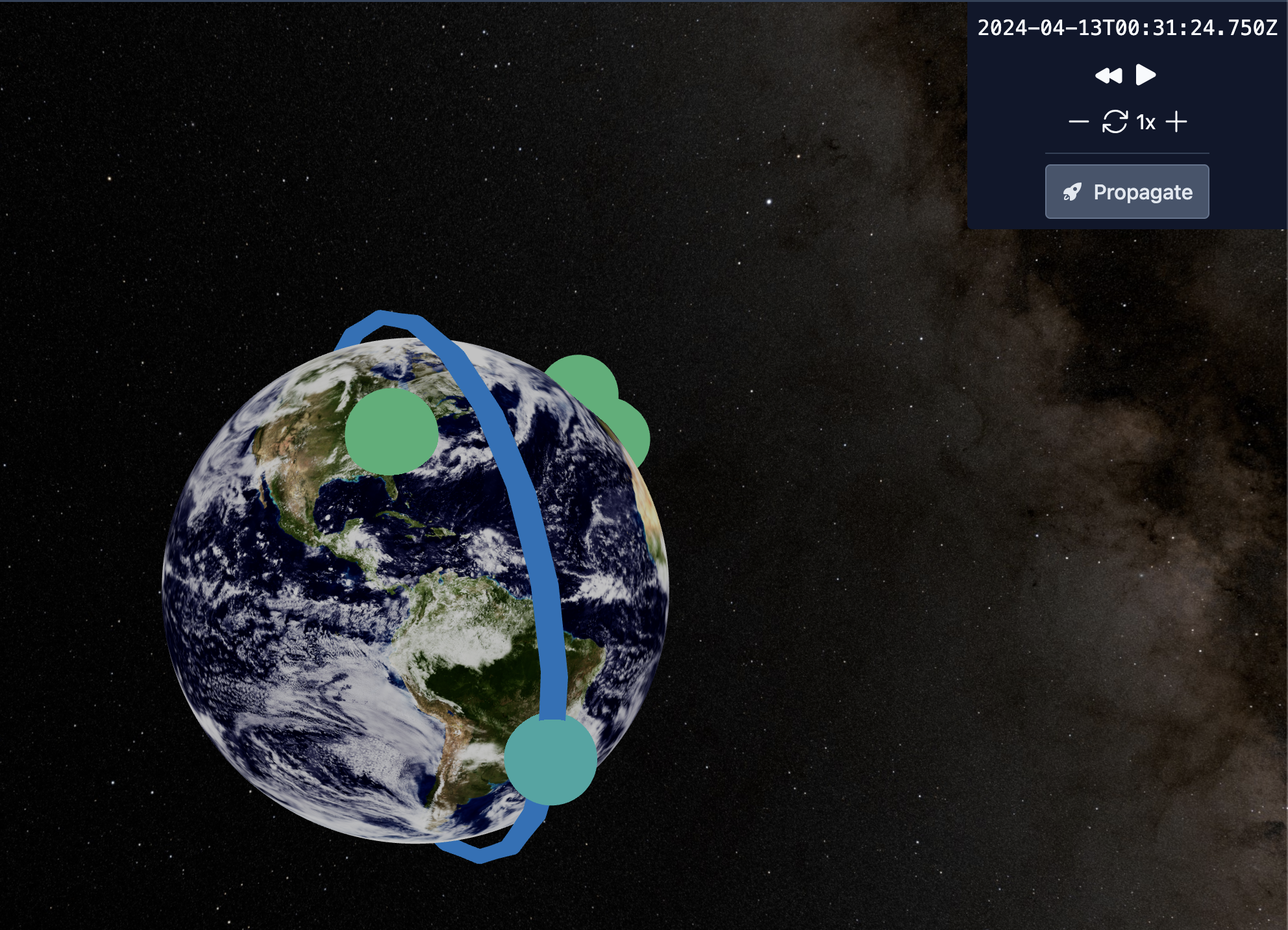
The globe with a Walker constellation
View → Earth draws the Earth in one of four styles: Natural, the photographic Earth with clouds, and three maps drawn from the Natural Earth coastlines and borders that make ground stations and coverage easier to read: Atlas, light and plain, Night Map, dark with bright outlines, and Blueprint, a technical drawing. The interface remembers your choice.
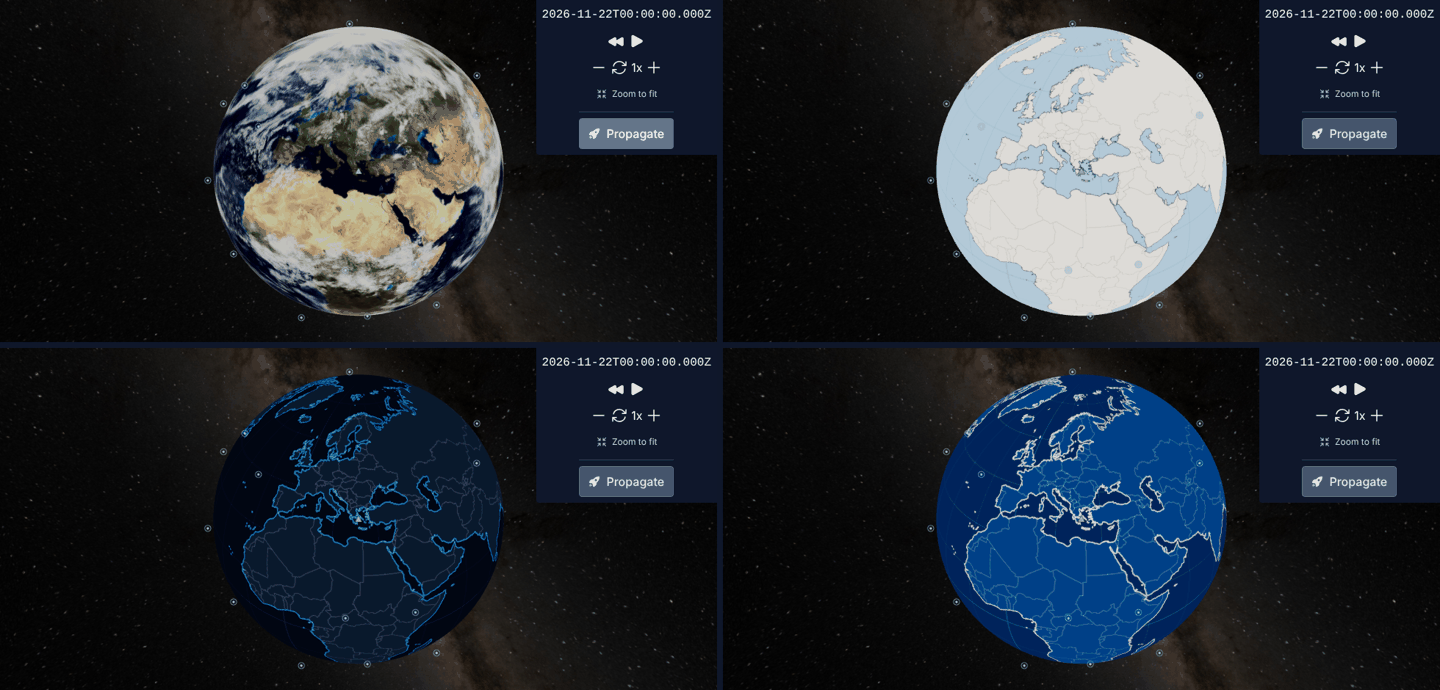
The Natural, Atlas, Night Map and Blueprint styles of the Earth
Analyses
The analyses panel works the same way for each analysis:
Choose the analysis on the left of the panel: Visibility, Link Budget, Navigation or Coverage. The Analysis menu does the same.
Set its options, under the list of analyses.
Press Run analysis. A notification tells you when it has finished, or why it failed.
The results appear on the right, starting with a row of the key numbers, followed by interactive charts and a table.
The results of each analysis stay while you look at the others, so you can run the visibility, then the link budget, and go back to the visibility without running it again. Opening another scenario clears them.
The charts are interactive:
hover over a line or a bar for its values,
drag to zoom into a part of a chart, and double-click to zoom out,
click a legend entry to hide or show that line,
the icons at the top right of a chart save it as an image, pan, zoom and reset the view.
Every analysis can export its results as CSV files, for a spreadsheet or for Python.
Visibility
The visibility analysis finds the passes of the spacecraft over the ground stations: when each spacecraft is above the minimum elevation of each station.
Choose a Target, the spacecraft, and an Observer, the ground station, above the results.
The summary gives the number of Passes, the total Contact Time, the Longest Pass and the Highest Elevation.
The table lists the passes with their start, end, duration and maximum elevation.
The sky plot draws the passes as seen from the station, with north at the top and the zenith at the centre.
Click a pass, in the table or on the sky plot, to plot its elevation, range and range rate over time.
Show next to a pass moves the time of the globe to its start: press play to watch it.
All passes (CSV) and This pass (CSV) download the passes.
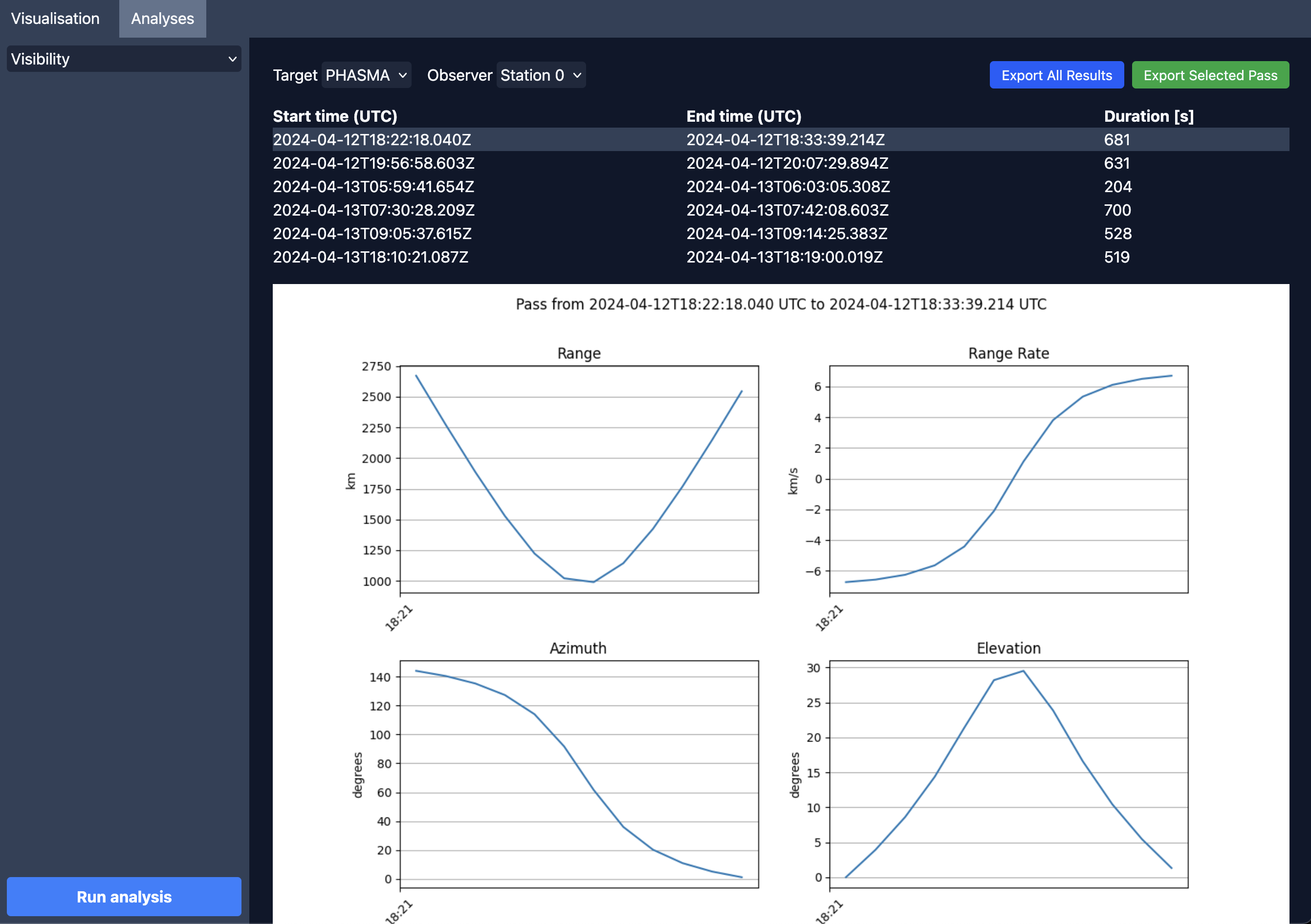
The passes of the ISS over Athens
Link budget
The link budget follows every link between the communication systems of the scenario over each contact. It needs assets with communication systems that share a channel, with an antenna, and a transmitter on one side and a receiver on the other.
Two options sit above Run analysis:
Enable interference analysis adds the interference of the other transmitters on the same frequencies.
Enable environmental losses adds the attenuation of rain and of the gases of the atmosphere along the path.
Choose a Target and an Observer above the results.
The summary counts the Contacts, the contacts with a Negative Margin, and gives the Worst Mean Margin and the Best Mean Margin.
The bar chart shows the mean margin of every contact, uplinks and downlinks side by side.
The table lists every contact with its margin, Eb/N0, C/N0, slant range, free-space path loss, EIRP, G/T and losses.
Click a bar or a row to plot the margin, Eb/N0, C/N0 and slant range over the contact. The margin is usually worst at the edges of a pass, at low elevation, and best overhead.
Show moves the globe to the start of a contact.
All contacts (CSV) and This contact (CSV) download the results.
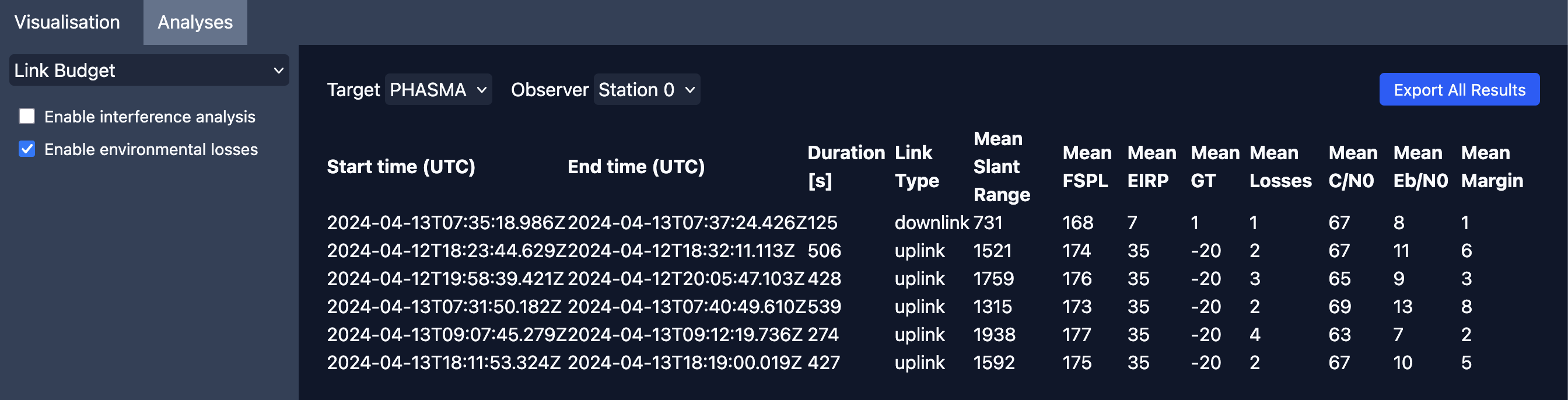
The link budget of an S-band link between the ISS and Athens
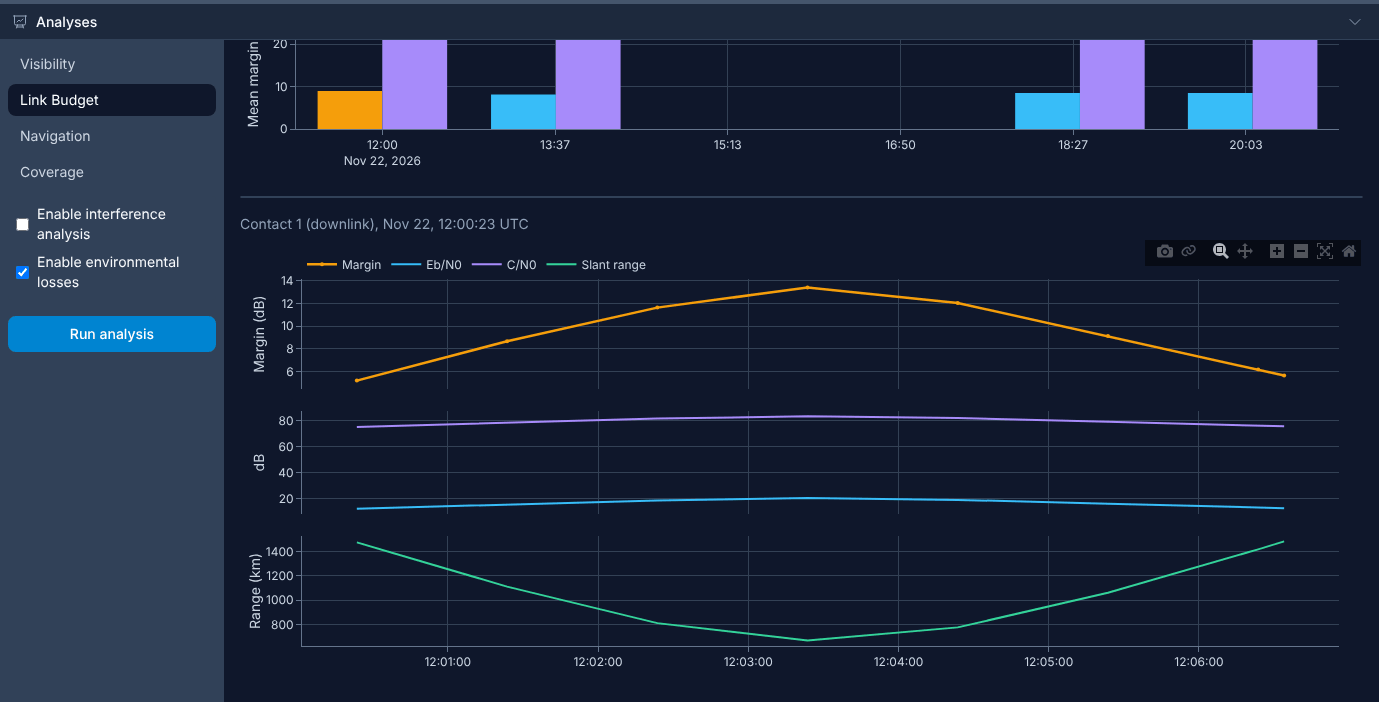
The margin and the signal over one contact
Navigation
The navigation analysis computes the dilution of precision (DOP) of a satellite navigation constellation as seen from a ground station: how much the geometry of the satellites in view amplifies a range error into a position error. It needs at least four spacecraft, for example the 32 Galileo satellites from public TLEs.
Set the UERE (User Equivalent Range Error) in metres, under the list of analyses: the combined error of the clocks, the ephemerides, the atmosphere, multipath and the receiver on each range. The position error is about the DOP times the UERE. Typical values are 5 to 7 m for civilian GPS, 3 to 5 m for Galileo, and 2 to 4 m for a multi-constellation receiver.
Choose the Observer above the results.
The summary gives the Satellites in View, the time With a Position Fix (four or more satellites in view), the Median PDOP and the Worst PDOP.
The chart plots the GDOP, PDOP, HDOP, VDOP and TDOP over the scenario, with the number of satellites in view below.
Export (CSV) downloads the time series.
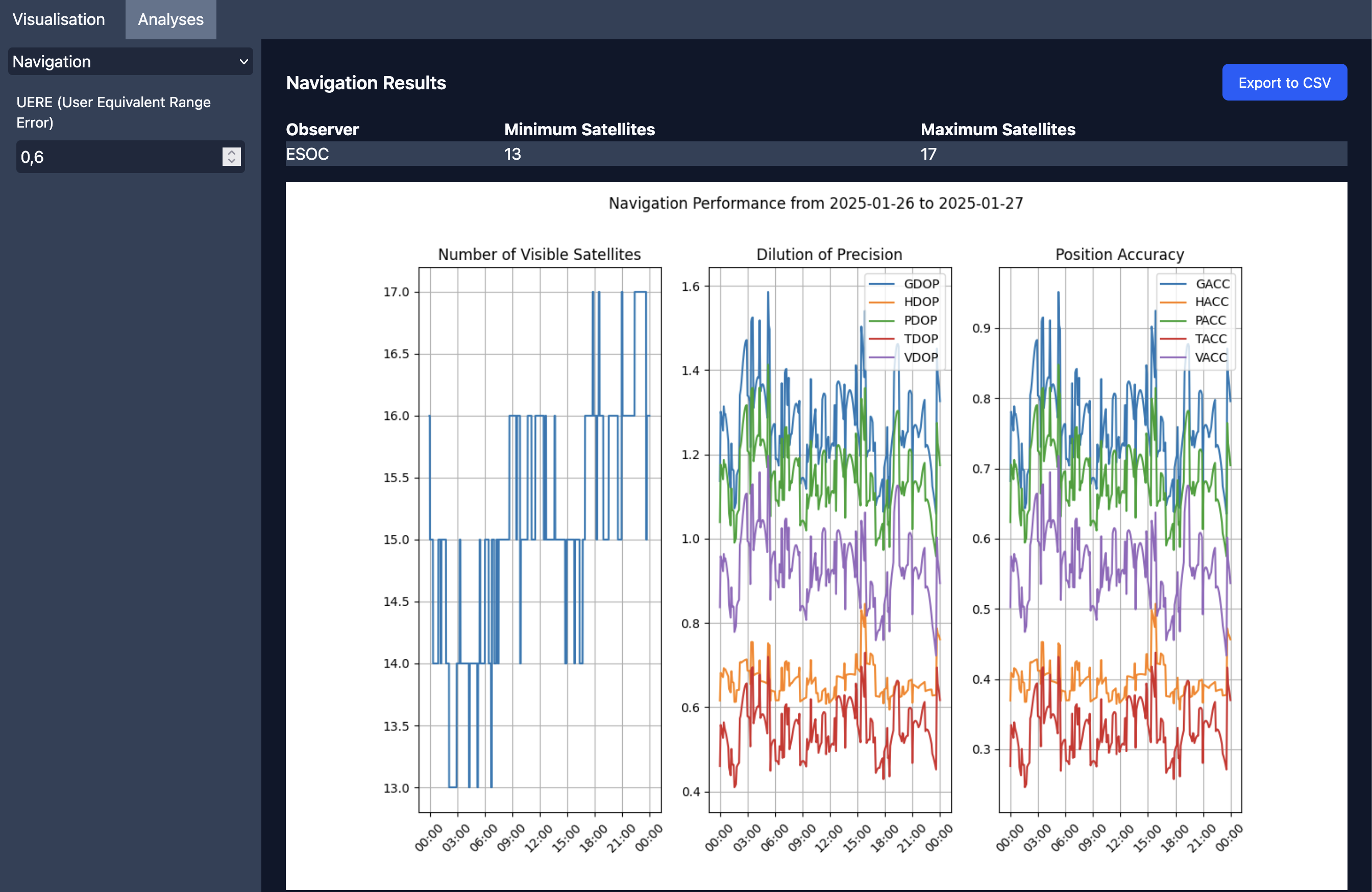
The dilution of precision of Galileo over Athens
Coverage
The coverage analysis cuts the areas of interest into cells, at the discretization resolution, and computes how much of the time each cell sees at least one spacecraft above the minimum elevation of its area.
Plot Ground Tracks adds a picture of the coverage with the ground tracks of the spacecraft under the map. It needs the whole scenario to be propagated, so press Propagate first.
The summary gives the number of Areas, the Average Coverage, the Least Covered area and the Longest Gap without coverage.
The map colours every cell by its coverage. Longest gap colours it by the longest time without a spacecraft instead. Hover a cell for its values.
The table lists the areas with their coverage, longest gap and number of cells; click an area to select it.
Export (CSV) downloads, for each area, its geometry as WKT, its coverage, its time gaps and its number of cells and accesses.
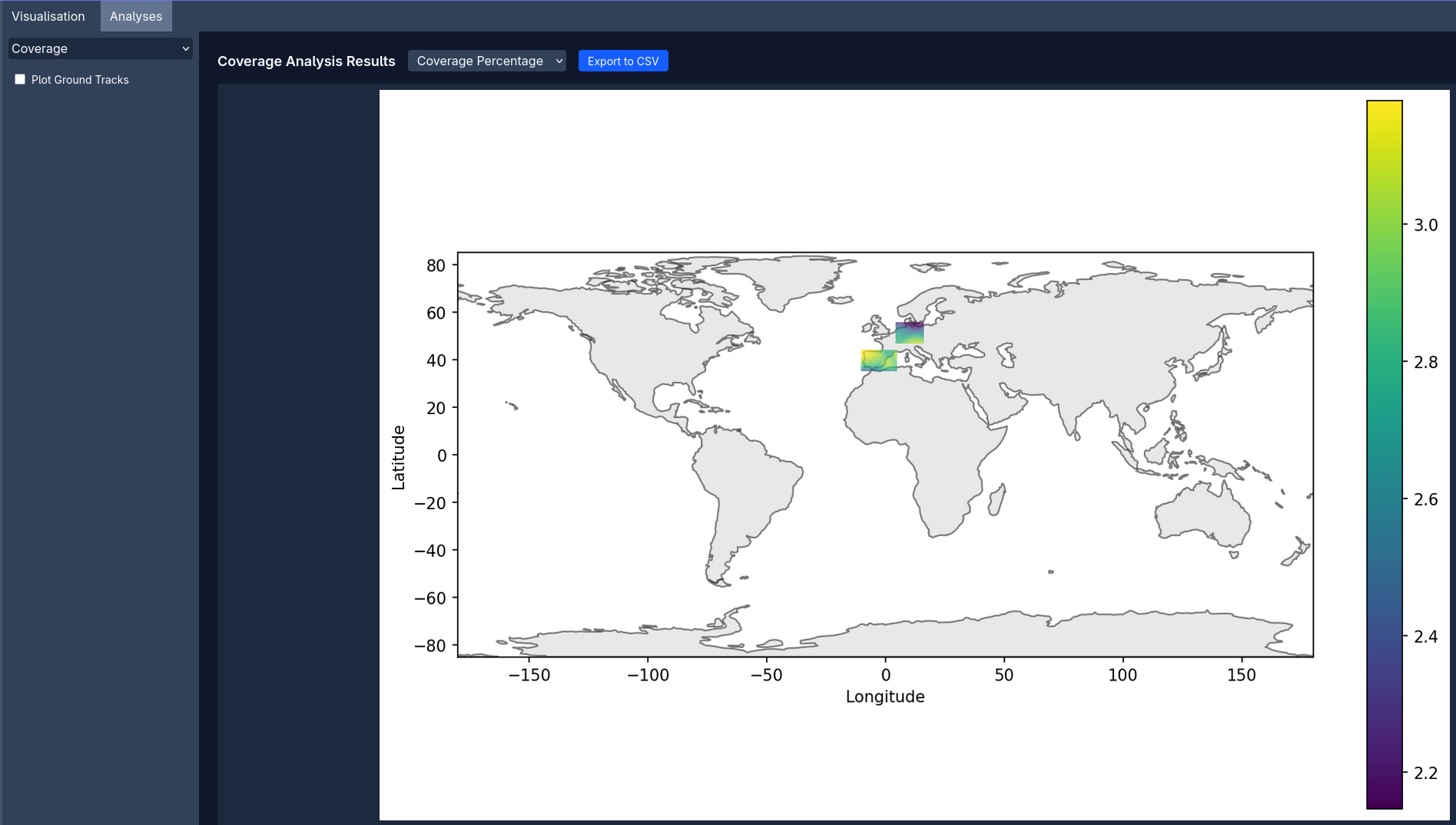
The coverage of Greece by a Walker constellation of 24 satellites
Presentation mode
View → Presentation Mode makes the text, the controls and the charts larger, so that an audience can read them on a projector or a shared screen. Together with Collapse on the editor, it leaves the globe and the results most of the room. Choose it again to go back.
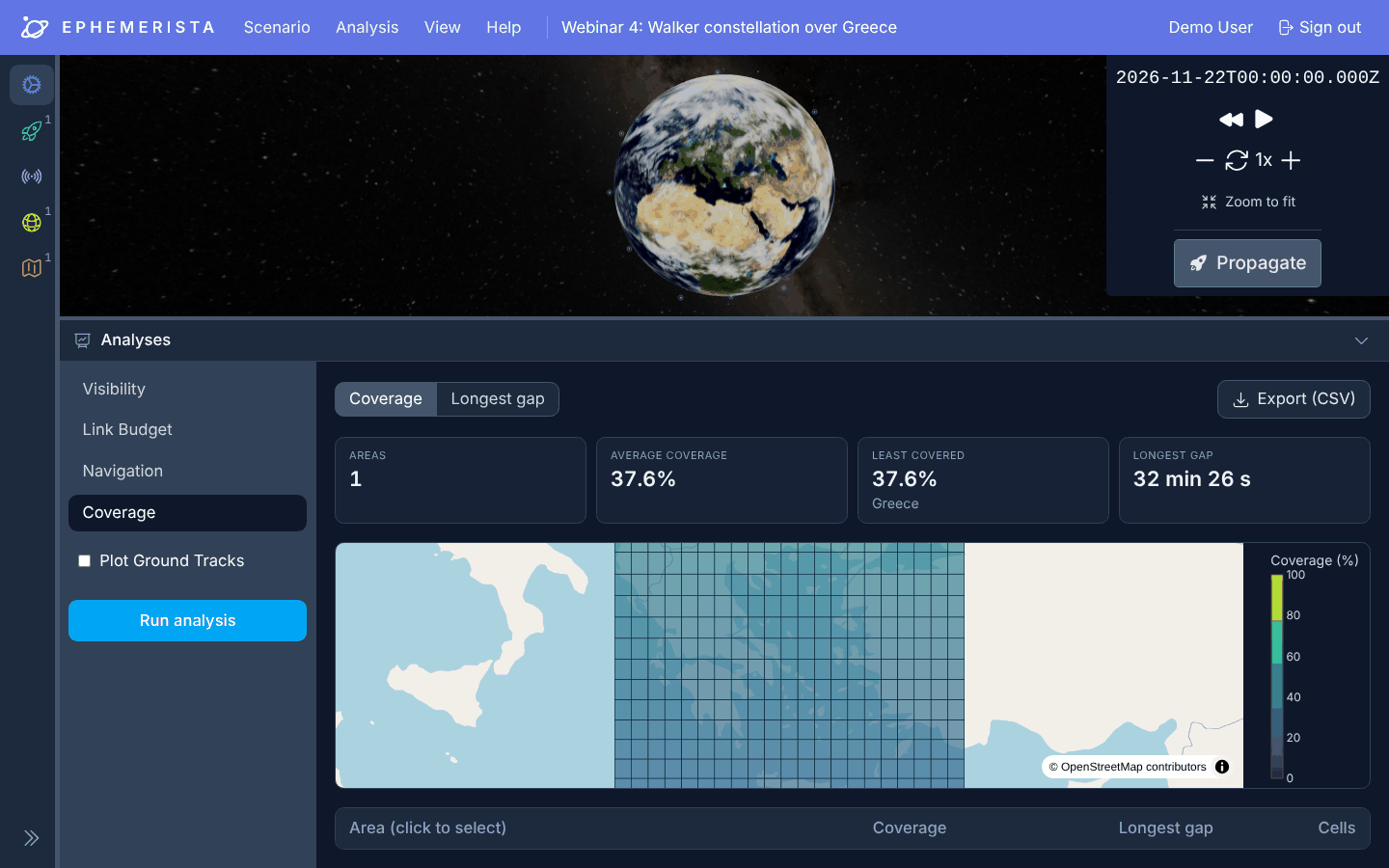
Presentation mode, with the editor collapsed
Compared with the Python API
The interface covers the common work of mission analysis. The Python API goes further:
Time scales: the interface uses UTC; the API offers every time scale, for example with
Time.from_components().Reference frames and centres: the interface studies Earth-centred scenarios; the API works around any body of the solar system or barycentre.
Force models: the interface sets the most common options; the API gives full control.
Batch work: the interface runs one scenario at a time; the API runs sweeps over parameters and whole pipelines.
Custom analyses: the interface has four analyses; the API lets you build your own from its parts.
A scenario exported from the interface loads in Python, so a common way to work is to build and check a scenario in the interface, then script it.
Tips
Start small. Begin with a short span, a few assets and a coarse resolution, check that the results make sense, then grow. A day is enough for visibility and link budgets; coverage and navigation often need only hours. Large constellations over long spans take longer to propagate and analyse.
Keep element sets fresh. SGP4 is accurate for days to a few weeks around the epoch of a TLE, especially in low Earth orbit. Paste a recent TLE for a scenario in the future or the past.
Use realistic stations. Choose minimum elevations that match the horizon of each station, and system noise temperatures and losses that match the real hardware.
Check on the globe. Before trusting an analysis, look at the scenario on the globe: are the orbits where you expect, and do the passes over a station happen when the spacecraft is near it?
Save versions. Save keeps every version on the server, so you can try a change and still have what worked.
Troubleshooting
An analysis fails. The notification says why. Check what the analysis needs:
a link budget needs communication systems with a shared channel, an antenna, a transmitter and a receiver,
a navigation analysis needs at least four spacecraft and a ground station,
a coverage analysis needs an area of interest and at least one spacecraft, and Plot Ground Tracks needs Propagate first.
An analysis takes long. Shorten the time span, coarsen the discretization resolution, or remove spacecraft you do not need. On the hosted service, many people running analyses at once also slows each of them down.
A scenario does not open from a file. The file must be a scenario exported from Ephemerista. The notification names the field that is not valid.
The page asks you to sign in again. Sessions end after a while. Sign in again: the scenario you were editing stays in the browser.
The globe stays black or is slow. The globe needs WebGL. Use a recent version of Firefox, Chromium or another current browser, close other tabs that use the graphics card, and reload the page.
A chart stays empty. Reload the page and run the analysis again.
Something else goes wrong. Open the developer tools of the browser (F12) and look at the Console for errors, then report the problem with the steps that lead to it on the issue tracker.
Next steps
Follow the Python API guide to script what you built in the interface.
Browse the example scenarios and notebooks of the library.
Read how the results were checked in Validation.